
Бесплатно 
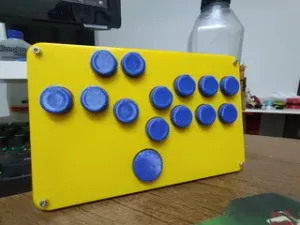
簡易hitbox 利用pi pico
MakerWorld

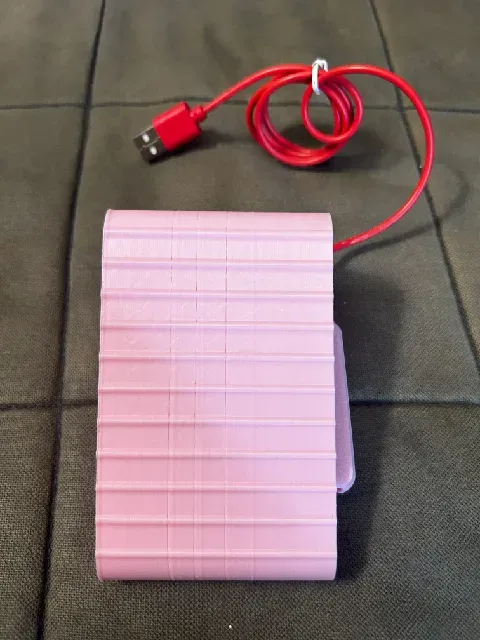
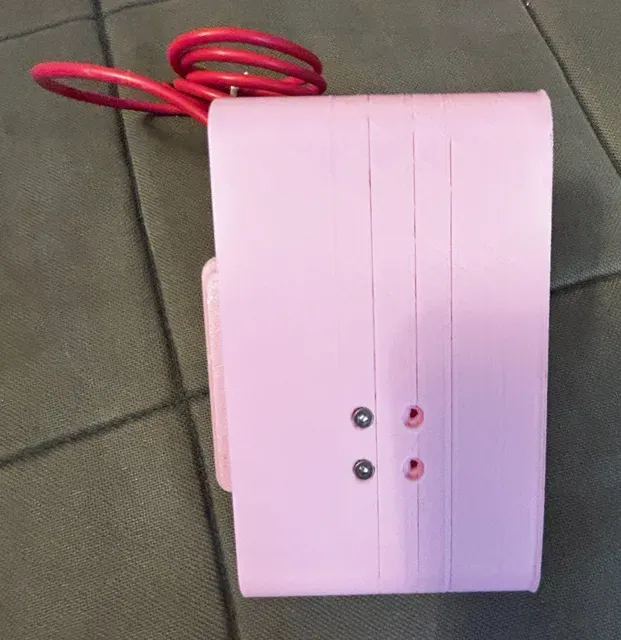
Lightweight minimal single foot pedal that sends keyboard presses or mouse clicks when pressed.
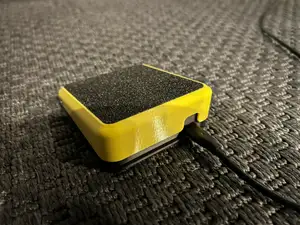
Brett Hampton's remix of OK1HRA's foot pedal was great, and worked with the micro-switches I'd procured, but his control box was bulky for a single pedal setup. So I modified George's case to add a base, allowing it to be attached in place of Brett's control box.
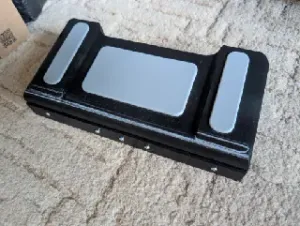
Print out the foot pedal: https://www.printables.com/model/781749-foot-pedal-and-controller. I sliced in Cura and used the “Make Overhang Printable” to avoid use of supports, at a modest savings of filament.
Print out my Pico side car, and print out the lid, from George's model, unchanged. There's a small channel in the base of the sidecar for you to pass the wiring from the switch to the Pico.
You need the switches, a Raspberry Pi Pico or Pico 2, with no headers, hookup wire, solder and m2.5 screws.
Micro switches: https://www.amazon.com/dp/B07BL33XXT
Pi Pico: https://www.amazon.com/Raspberry-Pi-Pico/dp/B09KVB8LVR/
Screws: https://www.amazon.com/dp/B07PS8V4V3
Circuit Python for Pi Pico: https://circuitpython.org/board/raspberry_pi_pico/
Circuit Python for Pi Pico 2: https://circuitpython.org/board/raspberry_pi_pico2/
Circuit Python libraries: https://circuitpython.org/libraries
Download the version of CircuitPython appropriate to your board. Hold down the BOOTSEL button on the Pi Pico as you connect it to your PC, then copy the .uf2 file into the root folder of the Pico's “drive” that mounted on your PC.
The Pi should re-mount as “CircuitPy”. Copy the HID library folder from the Circuit Python libraries zip file into the “lib” folder. Then copy the code into the “code.py” file in the root folder. My code is set up for pin GP15. Wire the two front terminals of the switch to GP15 and GND on the Pi Pico.
#Keyboard Code import board import digitalio import time import usb_hid from adafruit_hid.keyboard import Keyboard from adafruit_hid.keycode import Keycode
# Setup GP15 as input with pull-up button = digitalio.DigitalInOut(board.GP15) button.direction = digitalio.Direction.INPUT button.pull = digitalio.Pull.UP
# Setup keyboard HID kbd = Keyboard(usb_hid.devices) # comment this line to use mouse
# Debounce state was_pressed = False
while True: if not button.value and not was_pressed: # Button pressed (GP15 grounded) kbd.send(Keycode.A) # Replace with your desired keystroke was_pressed = True elif button.value: # Button released was_pressed = False time.sleep(0.05) #Mouse Code import board import digitalio import time import usb_hid from adafruit_hid.mouse import Mouse
# Setup GP15 as input with pull-up button = digitalio.DigitalInOut(board.GP15) button.direction = digitalio.Direction.INPUT button.pull = digitalio.Pull.UP
# Setup Mouse HID mouse = Mouse(usb_hid.devices)
# Debounce state was_pressed = False
while True: if not button.value and not was_pressed: # Button pressed (GP15 grounded) mouse.click(Mouse.MIDDLE_BUTTON) # Replace with desired button was_pressed = True elif button.value: # Button released was_pressed = False time.sleep(0.05)





Названия используются только для указания источника результата. Polyzon не аффилирован с перечисленными площадками.